How to get your SAM.gov API key
Fedscope finds opportunities using your company’s own SAM.gov API key. Getting one is free and takes about five minutes.
Before you start
- A SAM.gov account. You sign in through Login.gov.
- A role at your company’s entity in SAM.gov, such as Administrator. Why it matters
Step 1: Open Account Details
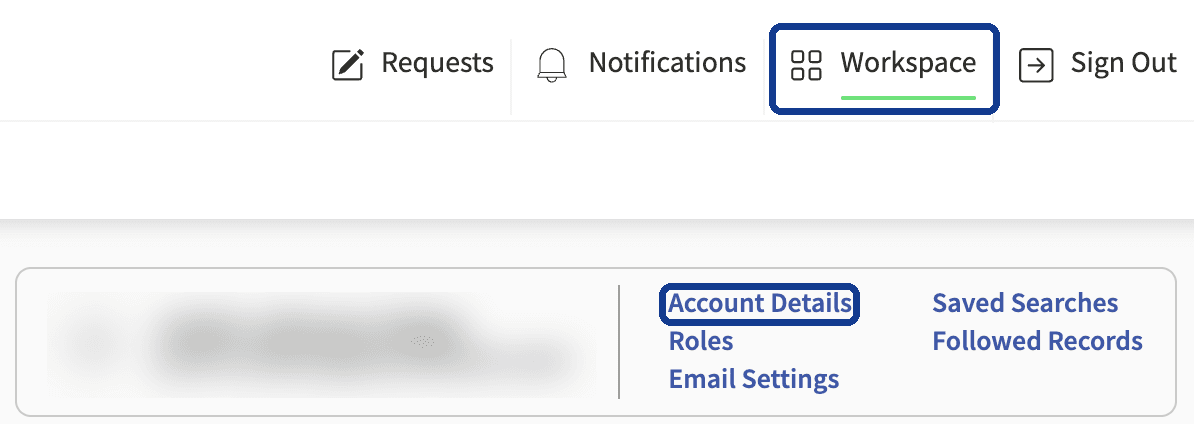
Sign in at SAM.gov (opens in a new tab). If you don’t land on your Workspace, select Workspace at the top right. Then, in the profile card on the right, select Account Details.
Step 2: Request your key
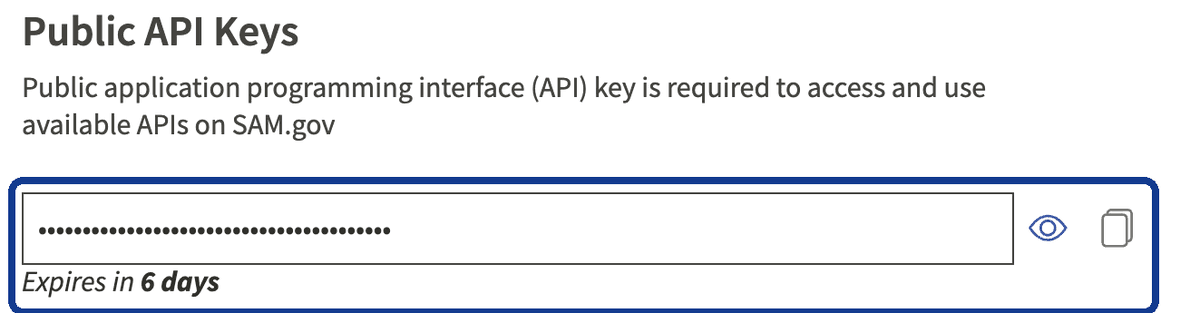
Scroll down to Public API Keys. If this is your first key, select the button to request one. SAM.gov emails you a one-time passcode; enter it and your key appears.
Step 3: Copy it
Select the copy icon next to the key. The eye icon shows the key if you want to check it.
Step 4: Add it to Fedscope
In Fedscope, select your company name at the top right, choose Manage, then SAM.gov. Paste the key, enter your UEI and select Connect.
Check your role
Your SAM.gov account needs a role at your company’s entity. Without one, SAM.gov allows only 10 requests a day, which isn’t enough for Fedscope. With a role, it allows 1,000 (SAM.gov API limits (opens in a new tab)).
To check, select Roles in your Workspace profile card. Your company should be listed with a role such as Administrator.

No role listed? Select Request Role on that page and ask your company’s SAM.gov administrator to approve it.
When your key expires
SAM.gov keys expire, and the countdown shows under your key (“Expires in 6 days”). Before it runs out, request a new key on the same page. Then in Fedscope go to Manage → SAM.gov → Update key. If Fedscope shows “Key needs reconnecting,” this is the fix.
Keep it private
Treat the key like a password. Paste it only into Fedscope’s SAM.gov screen, and don’t send it by email. Fedscope stores it encrypted.
Stuck? Email fedscope@jdxsoftware.com and we’ll help. Don’t have Fedscope yet? Request early access.